
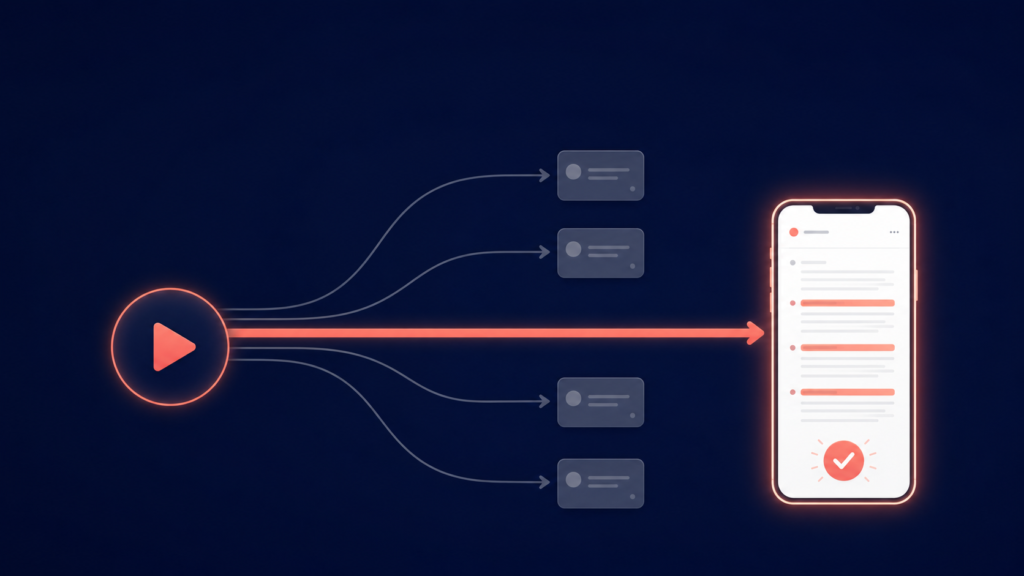
There are at least five different ways to get a transcript out of a YouTube video, and they are not created equal. Some are free but messy. Some are accurate but expensive. Some only work on a desktop, which is no help when the video is playing on your phone.
I tested the five most common methods on the same video, a 25-minute interview with two speakers, some background music and a fair bit of technical vocabulary. Here is how each one held up, who each one suits, and which one I would actually use.
Method 1: YouTube’s built-in transcript panel
Cost: Free. Works on: Desktop browser, partially on mobile
YouTube quietly includes a transcript viewer on most videos. On desktop, click the three dots below the video (or scroll the description) and choose “Show transcript”. A panel opens with the captions and timestamps.
The good: It is free, instant, and needs no extra tools. For quickly checking what was said at a specific timestamp, it does the job.
The bad: You cannot copy it cleanly. The text comes out chopped into caption-length fragments with a timestamp glued to every line, so pasting it anywhere means minutes of manual cleanup. Accuracy depends entirely on YouTube’s auto-captions, which struggled with the technical terms and one speaker’s accent in my test. There is no summary, no structure, and the mobile experience is limited.
Best for: Quick lookups while you are already watching on a laptop.
Method 2: Caption downloader websites
Cost: Free, usually ad-supported.
Works on: Any browser
A cluster of websites let you paste a YouTube link and download the captions as a text or SRT file. They pull the same auto-generated captions as Method 1, just packaged for download.
The good: Free, fast, and you get an actual file.
The bad: You inherit every error in YouTube’s auto-captions, and the output is still unstructured caption fragments rather than readable paragraphs. Most of these sites are plastered with ads and pop-ups, some of them aggressive. And because they scrape captions rather than transcribe audio, videos without captions give you nothing at all.
Best for: Grabbing a rough caption file occasionally, if you can tolerate the ads.
Method 3: Browser extensions
Cost: Free to freemium.
Works on: Desktop only
Extensions for Chrome and other browsers add a transcript or summary button directly to the YouTube page. Some include a basic AI summary on top of the captions.
The good: Convenient once installed, and the better ones add light structure to the text.
The bad: Desktop only, which rules out the phone where most casual YouTube watching actually happens. Quality varies wildly between extensions, several have been caught harvesting browsing data, and most still rely on YouTube’s captions underneath, so the accuracy ceiling is the same. You also end up with the transcript trapped in a browser popup rather than saved anywhere useful.
Best for: Desktop-heavy users who watch a lot of YouTube in one browser and choose their extension carefully.
Method 4: Professional transcription services
Cost: Roughly £1 to £1.50 per audio minute for human transcription, less for machine drafts. Works on: Web upload, sometimes with review dashboards
Services like Rev and similar platforms produce polished transcripts, with the premium tiers reviewed by human transcribers.
The good: The highest accuracy available, with proper speaker labels and formatting. If a transcript is going into a legal record, a published interview or subtitles for your own content, this is the standard.
The bad: Cost and speed. A 25-minute video at human-review rates costs £25 to £40 and takes hours to come back. For personal notes, study or research, that is a hammer for a drawing pin. You also have to download the video’s audio yourself first, which is its own faff.
Best for: Professional publishing where every word must be right, and budget exists for it.
Method 5: An AI note-taking app
Cost: Free to try, subscriptions from £2.99.
Works on: iPhone and iPad
This is the newest category and the one I now use daily. Apps like Converge Note AI take a YouTube link, run the actual audio through OpenAI’s Whisper speech model, and return a proper transcript plus a summary and key highlights, all inside the app on your phone.
The good: Whisper transcribes the audio itself rather than recycling YouTube’s captions, so accuracy in my test was noticeably better on the technical terms and the accented speaker. The output is readable paragraphs, not caption fragments. You also get a summary and highlights automatically, and you can chat with the transcript afterwards to pull out specific points, which no other method here offers. Everything saves into a searchable library, so the transcript is still findable in six months. If you want the full step-by-step, I covered it in how to transcribe a YouTube video to text.
The bad: Heavy use needs a subscription, and it is currently an Apple-only app, so Android users are out of luck for now.
Best for: Anyone who transcribes videos regularly for study, work or research and wants notes rather than just raw text.
The comparison at a glance
| Method | Cost | Accuracy | Readable output | Summary included | Works on phone |
|---|---|---|---|---|---|
| YouTube transcript panel | Free | Depends on captions | No | No | Partially |
| Caption downloader sites | Free (ads) | Depends on captions | No | No | Yes, clunky |
| Browser extensions | Free to freemium | Depends on captions | Sometimes | Basic | No |
| Professional services | £1+ per minute | Excellent | Yes | No | No |
| AI note-taking app | Free to try | Very good (Whisper) | Yes | Yes | Yes |
So which method should you use?
It comes down to what the transcript is for.
If you need to check one quote while sitting at a laptop, the built-in panel is fine and free. If you are publishing an interview and every word carries weight, pay a professional service. For everything in between, which honestly covers most real situations, an AI note-taking app wins on the combination that matters: genuine transcription accuracy, readable output, a summary on top, and the whole thing living on your phone.
The summary point deserves emphasis. Four of the five methods hand you raw text and leave the thinking to you. Only the app route gives you the transcript, the short version and the key takeaways together, then lets you ask questions about the content. Once you have worked that way, going back to scrubbing through caption fragments feels like washing clothes by hand.
The same workflow extends beyond video, too. The app that transcribes your YouTube links will also summarise your documents; I compared that side of it in the best way to summarise a PDF with AI.
Frequently asked questions
What is the best free YouTube transcript generator?
YouTube’s built-in transcript panel is the best fully free option for quick lookups on desktop. For better accuracy and readable output, Converge Note AI is free to download and lets you test real Whisper-based transcription before paying anything.
Why is my YouTube transcript so inaccurate?
Most free methods reuse YouTube’s auto-generated captions, which struggle with accents, technical vocabulary, music and crosstalk. Tools that transcribe the audio directly with a modern speech model, such as Whisper, produce noticeably cleaner results.
Can I get a transcript of a YouTube video on my phone?
Yes. An AI note-taking app is the most practical route on mobile: paste the video link into Converge Note AI on iPhone or iPad, and you get a full transcript, summary and highlights within seconds.
Do transcript generators work on videos without captions?
Caption-based methods do not, because there is nothing to scrape. Methods that process the audio itself, meaning professional services and Whisper-based apps, work on any video regardless of captions.
Is it legal to transcribe a YouTube video?
Transcribing for personal notes, study and research is generally fine. Republishing someone else’s content wholesale is a copyright matter, so treat transcripts of other people’s videos the way you would treat any quoted source.
The bottom line
Five methods, one honest ranking: use the built-in panel for quick checks, pay professionals for publishing, and use an AI app for everything else. If your videos regularly turn into notes, revision material or research, download Converge Note AI free on the App Store and run your next video through it. Compare its transcript against the auto-captions of the same video, and the difference makes the decision for you.
Leave a Reply